Video calls for online guitar lessons that sound like a guitar.
Zoom, Meet and other meeting apps clean up voices, and to them a guitar is mostly noise. Diesis turns those filters off, keeps the sound in stereo, doesn’t stop at 40 minutes, puts the lesson itself, notes and homework, beside the picture, and gives you a neck and a piano you both play. Nothing to install: teacher and student open it in the browser.
Nothing to install · Phone or computer
Video calls optimized for online guitar lessons.
Meeting apps clean up voices, and to them a guitar is mostly noise. Diesis turns off the filters that eat a guitar’s sound, keeps the lesson beside the picture, and gives you a neck and a piano you both play.
| Diesis against a free Zoom account | Diesis | Zoom, free |
|---|---|---|
| Guitar sound on from the start, in stereo | A setting to find | |
| Lessons longer than 40 minutes | ||
| Notes and homework beside the call | ||
| A neck and a piano you both play | ||
| The student keeps the lesson afterwards | ||
| Price | Free in preview | Free up to 40 min |
Speakers work. With headphones on, turn on Headphones in Sound and camera for the cleanest sound.
A neck and a piano you both play during the call.
Open one from the call: what either of you plays lights up and sounds on both screens.
Homework for next time
Piano · your teacher leads it
A lesson lives in four places.
One place, from one lesson to the next.
The lesson beside the picture.
While the call runs, the teacher has the week in front of them.
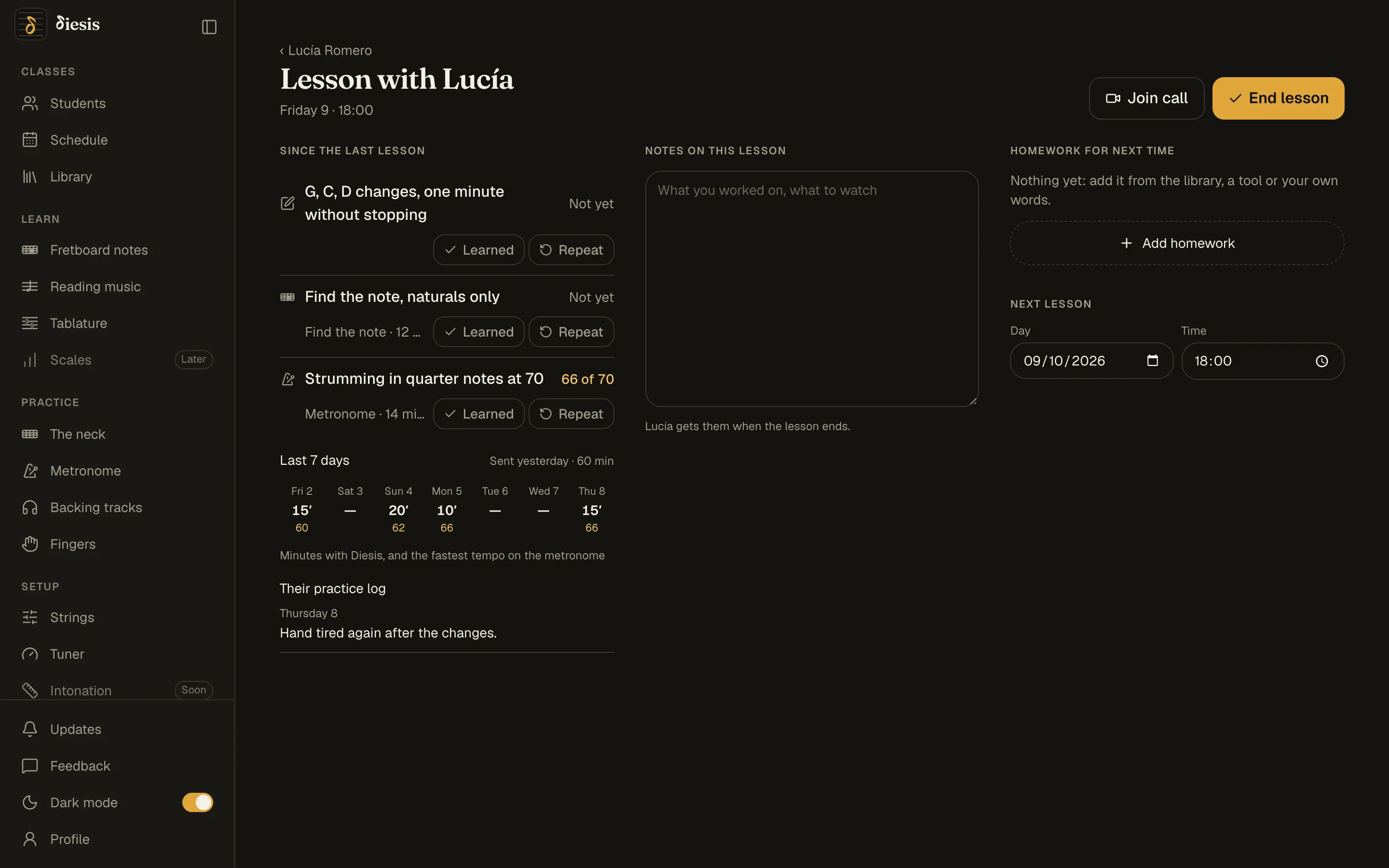
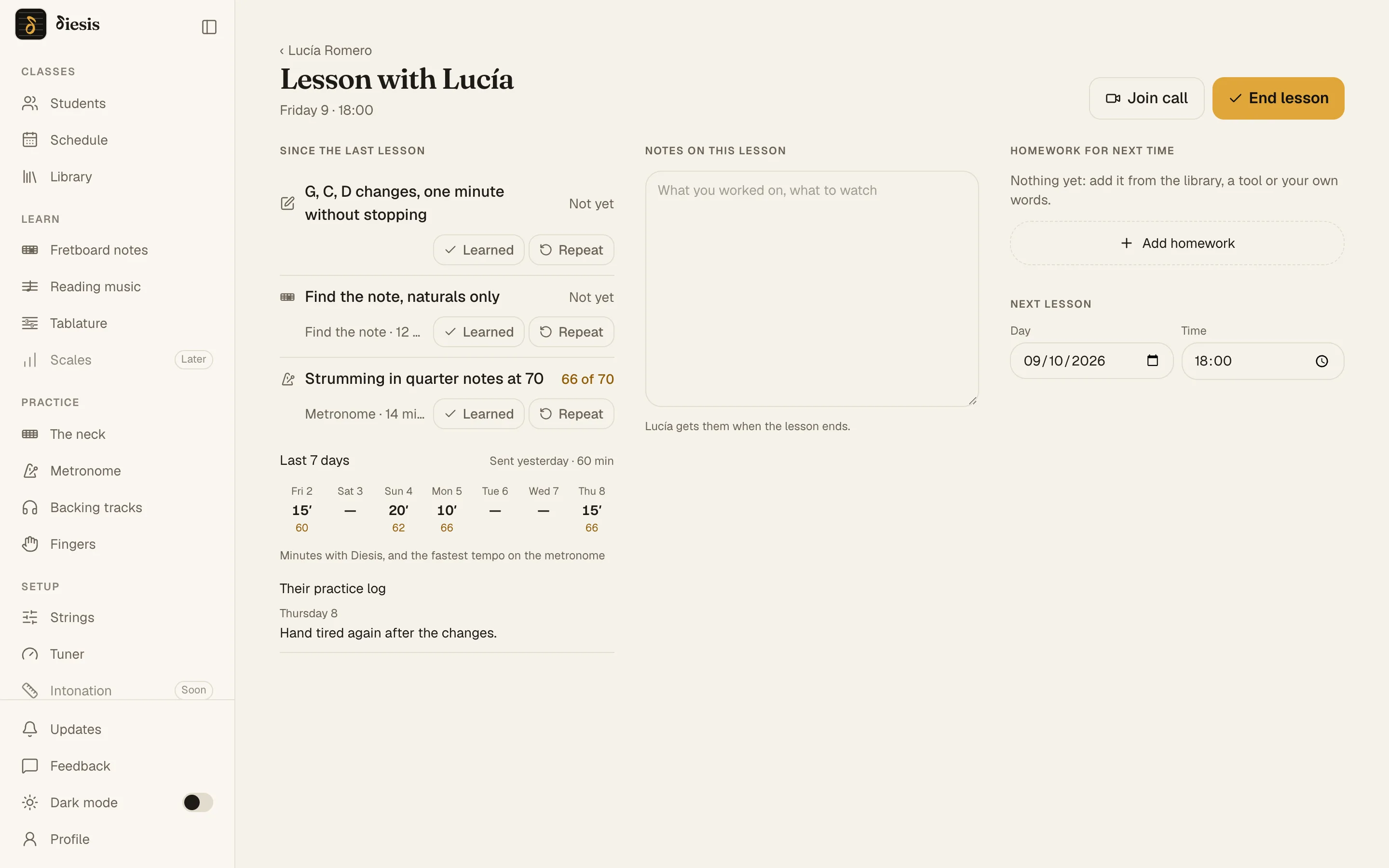
One button into the lesson.
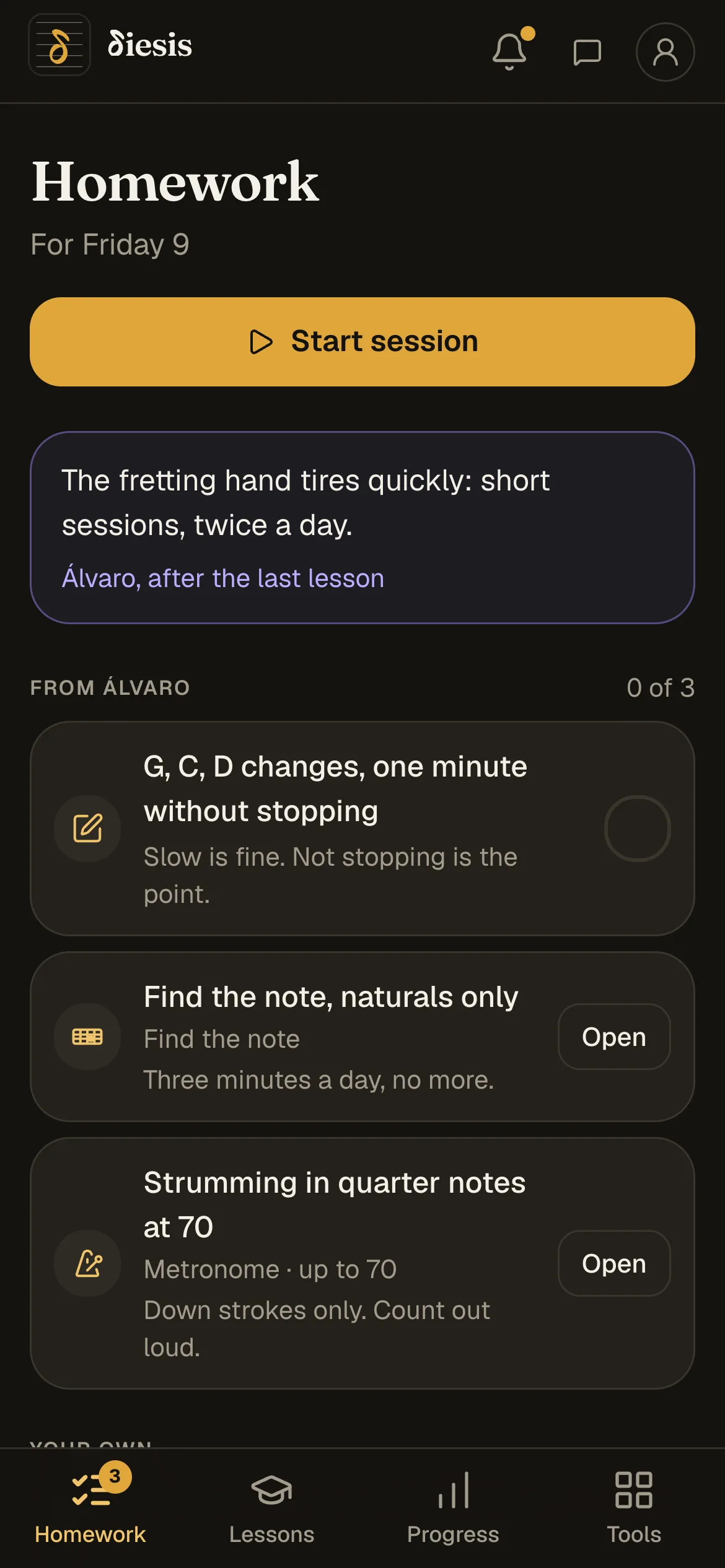
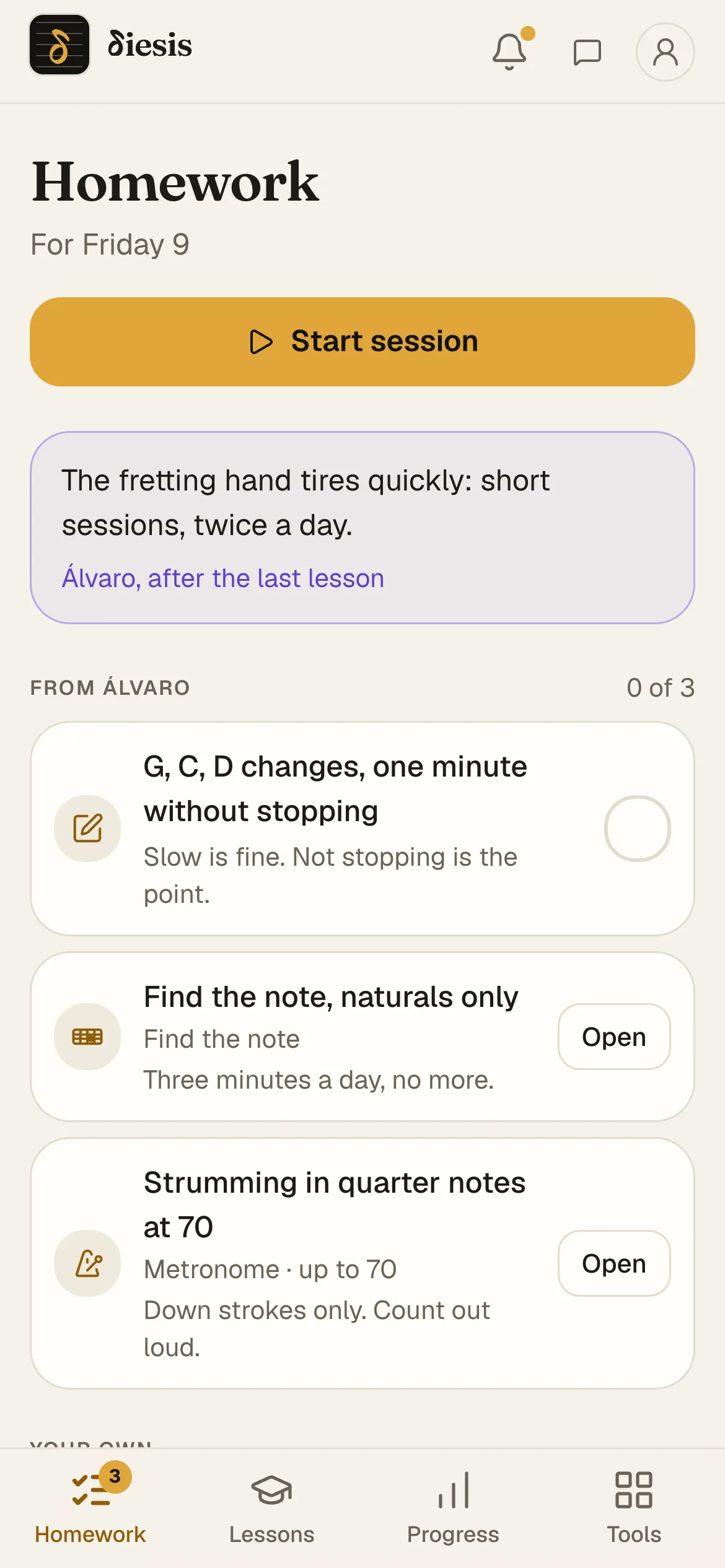
Online lessons
What do I need for the call?
A camera and your microphone or audio interface, picked on the call screen. Speakers work; headphones give the cleanest sound.
Speakers or headphones?
Speakers work, because echo cancelling stays on. With headphones, turn on Headphones in Sound and camera and that goes off too: the cleanest sound there is.
What if the call doesn’t connect?
On some networks the two browsers can’t reach each other yet. Diesis tells you after 20 seconds, and you can use your usual link for that lesson.
Why does my guitar sound bad on Zoom?
Meeting apps filter the sound for voices: noise suppression eats a held note and automatic gain pumps the volume. Diesis turns both off, sends the sound in stereo, and lets you pick your audio interface on the call screen.
How do I set up Zoom for guitar lessons?
In Zoom’s audio settings, turn on Original sound for musicians, with high-fidelity music mode and stereo if you play through an audio interface; then switch it on inside each meeting and wear headphones. On the free plan the meeting still ends at 40 minutes. On Diesis the guitar sound is on from the start and there is no time limit.
What’s the best video call app for guitar lessons?
One that leaves the guitar’s sound alone: no noise suppression, no automatic volume, and stereo if you play through an interface. Zoom does it once Original sound for musicians is on. Diesis does it by default, with no time limit, and keeps the lesson’s notes and homework beside the picture.
Can I show scales on a fretboard during the call?
Yes. Open the neck from the call and you both see it: what either of you plays lights up and sounds on both sides. Put a scale on it by position, over a chord, mark a lick and play it, and set it as homework. There is a piano too, with the intervals written between the keys.
Does it work for lessons in person?
Yes. The homework and the progress work the same when you meet in a room; the call is there for when you don’t.
Can I find a teacher on Diesis?
Not yet. Today a teacher invites you with a code. A place to find one is on the list.